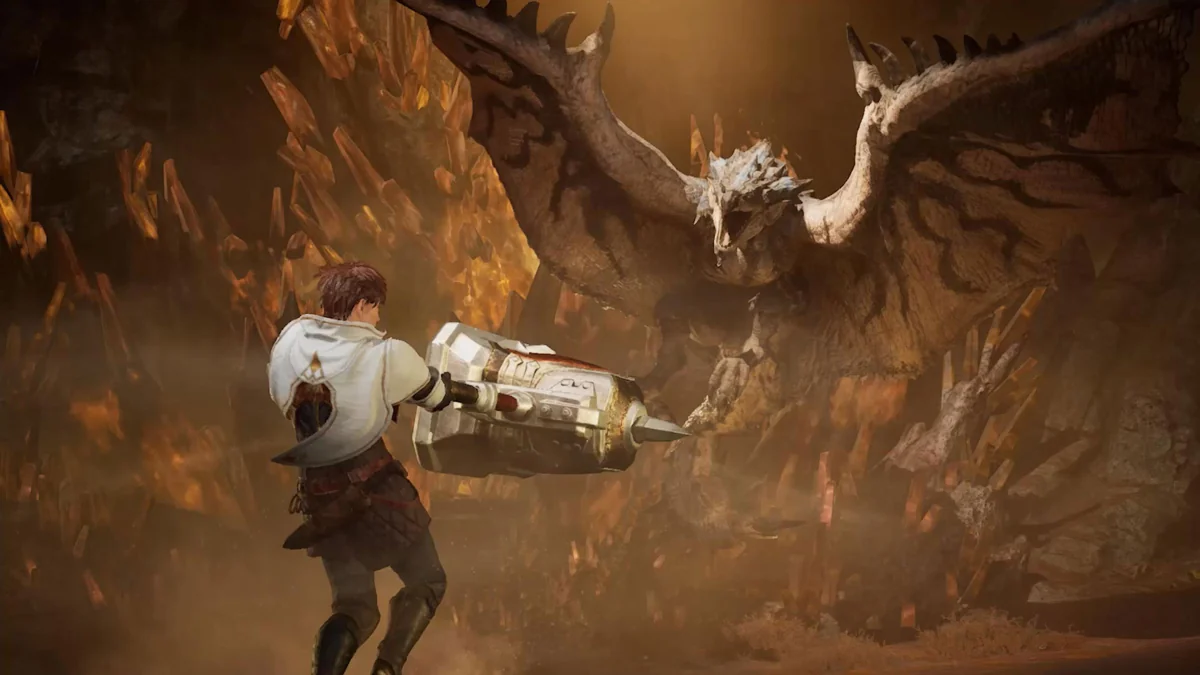
Can you play Monster Hunter Outlanders on PC?
There is no official PC client listed as of October 30, 2026. The publisher’s platform information identifies iOS and Android. An emulator runs the Android game inside desktop software; it does not turn Outlanders into a native Windows release. We found no official Steam or standalone Windows version in the sources reviewed.
An Android emulator is a possible route to investigate if you want a larger screen. First check whether the current game is available to your region and account inside that emulator’s Play Store. A vendor landing page alone does not prove that the current build installs, authenticates, or completes a hunt. This guide has not run that compatibility test.
Aim to get a legitimate installation running, retain the right account, and build a layout that lets you dodge reliably. Only then chase sharper graphics. If the game refuses the virtual device, use a supported phone or tablet while checking publisher and emulator support updates.
BlueStacks, LDPlayer, or MuMu?
These are options to compare, rather than a speed ranking. The comparison describes vendor features checked on October 30. We have no matched hardware benchmarks or publisher confirmation that every emulator is supported.
| Emulator | What its vendor documents | When to investigate it | Check before committing |
|---|---|---|---|
| BlueStacks | Editable keyboard, mouse, and gamepad controls; shareable control profiles | You want to adjust a detailed input layout | Available Android image, current game requirements, and whether the live build accepts the device |
| LDPlayer | An Outlanders PC listing, installation guidance, and keyboard mapping | You already use LDPlayer on Windows | Actual Play Store availability, graphics compatibility, login, and a completed hunt |
| MuMuPlayer | Desktop versions and keyboard/mouse mapping, including Mac options | You want another renderer or a vendor-supported Mac version | OS and processor requirements, regional publisher, and exact emulator version |
Choose one first. Installing three at once makes it harder to isolate a driver or background-process problem. Familiarity is a useful tiebreaker. Vendor promises of very high FPS are marketing claims until reproduced with Outlanders on your machine.
Install the Android game in six steps
- Check official downloads. Start from the official website and confirm the regional publisher. The international Level Infinite listing uses
com.tencent.mhadv; regional releases may use different publishers and account systems. - Download the emulator from its own website. Review current OS, processor, virtualization, and graphics requirements. Do not mistake an unrelated launcher for a native Outlanders release.
- Choose an appropriate Android instance. The publisher currently recommends Android 12 or later and a mobile device with at least 6 GB of RAM. These are mobile recommendations, not certified emulator specifications. Check the available Android image before a large download.
- Sign in to Google Play inside the emulator. Find the official regional game. If it is absent or incompatible, record that result; a vendor download button does not resolve device or region restrictions.
- Install, update, and use your intended game login. Complete resource downloads. Compare the character, server, and player ID against your phone if you already play there.
- Run a short control test. Move, rotate the camera, dodge, use an item, open a menu, and complete a simple hunt. Save the key map after testing. Login alone does not establish a usable setup.
Do not use an unknown APK to bypass a compatibility warning. If official support offers another installation route, follow its current instructions. This guide provides no modified client or device-detection workaround.
A starter keyboard and mouse map
This is an editorial layout to create yourself, not official PC controls or a promised emulator preset. Map keys to visible touch actions. Available actions vary with the weapon, Adventurer, and control mode.
| Action | Suggested binding | Test before a real hunt |
|---|---|---|
| Movement | W / A / S / D on the virtual stick | Diagonal movement and releasing the stick work cleanly |
| Camera | Mouse-look or a mapped drag area | You can release capture to click menus |
| Main attack | Left mouse button | Holding and tapping behave as intended |
| Dodge | Space | It works while moving and after an attack |
| Guard or secondary action | Right mouse button, if applicable | It matches the current kit’s visible action |
| Skills and follow-ups | Q / E / R on visible actions | Contextual buttons do not overlap old bindings |
| Recovery item | 1 or another reachable key | You can recover while steering |
| Pointer release | An unused emulator-supported key | It releases mouse-look without leaving the game |
Start with movement, camera, attack, and dodge. Add the rest once those work together. Keep a pointer available for inventory and dialogue. Recheck bindings after changing resolution, UI scale, window shape, or control mode: touch positions can move.
For Bow, test aiming while strafing. For Long Sword, test a counter without assuming mapping extends its timing window. For Lance, check that guard and movement coexist. The official site lists controller support for the mobile game, but that does not guarantee pass-through in your emulator. Test native controller input or mapped touch input, then remove any overlapping bindings.
Performance and graphics: change one thing at a time
Begin with lower game graphics, a moderate window resolution such as 1280 × 720, and a conservative frame cap if offered. These are troubleshooting suggestions, not measured best settings. A stable camera and readable monster tell beat a higher number that fluctuates during combat.
Check virtualization against the emulator vendor’s instructions. On laptops, verify the intended GPU is in use and test while connected to power. Close unnecessary emulator instances and heavy applications. Leave CPU and RAM for the host OS; giving every resource to the virtual device can make the whole system less responsive.
When the game works, improve one setting at a time:
- Use the same route or simple hunt as your comparison scene.
- Raise the frame cap only if frame pacing stays comfortable.
- Increase resolution until the interface and monster tells are clear.
- Add shadows and effects last, testing a busy encounter rather than an empty camp.
- Save a working profile before changing the graphics renderer.
If Vulkan, OpenGL, or DirectX choices are available, follow the vendor’s recommendation first. Drivers affect the outcome. Record the renderer and restart as instructed before comparing. A black-screen launch alone does not prove that the entire PC is too weak.
Account login and progress caveats
Your Google Play login installs the app. It does not prove you opened the same game account, character, or server used on another device. Read current publisher account-binding and cross-platform rules before assuming progress will appear.
Record your player ID and server on the original device. Use the same supported game login method in the emulator, then compare. An empty character screen is a reason to check login method, region, and server before creating a replacement character or purchasing anything.
Guest progress may depend on device state. Do not uninstall the original game, clear its storage, or reset the emulator until you confirm a supported binding. This guide has not verified guest transfer, simultaneous sessions, purchase portability, or account linking.
We found no publisher statement in the reviewed sources guaranteeing emulator account safety. Check the current agreement and official support guidance. Our suggested map assigns ordinary manual inputs; it does not automate hunts or modify the client.
Fix the failure you actually see
| Symptom | First useful check | Next step |
|---|---|---|
| Missing from Play Store | Regional publisher, account region, Android image | Check supported devices and vendor support; use supported mobile hardware if unavailable |
| Black screen or crash | Emulator and graphics-driver versions | Try one documented renderer change, then restart |
| Menus work, hunts stutter | Resolution, effects, background load, temperature | Lower graphics and repeat the same hunt |
| Mouse moves, camera does not | Capture mode and mapped drag area | Inspect the key map and retest outside a difficult fight |
| New character instead of old progress | Login method, region, server, player ID | Consult publisher support before changing accounts |
| Controls fail after an update | UI scale and touch-button positions | Rebuild affected bindings and repeat the short test |
For support, record emulator version, Android image, OS, GPU, driver, game version, and the exact error. Keep passwords and login codes out of the report. That gives the next test a useful starting point.
PC play questions
Is Monster Hunter Outlanders on Steam?
No official Steam or native Windows client is listed in the publisher sources checked on October 30, 2026. The announced platforms are iOS and Android; an emulator runs the Android version.
Which emulator runs Outlanders best?
We have not benchmarked BlueStacks, LDPlayer, or MuMu with the launch client. Compare installation, login, camera control, and a completed hunt on your hardware before choosing.
Does this guide guarantee cross-save?
No. Confirm current publisher login and account-binding rules, then compare player ID and server before assuming progress transfers between devices or regional releases.
Does keyboard mapping make every weapon easier?
No. A comfortable map helps you reach actions, but each weapon retains its timing and recovery demands. Use the weapon board to choose a learning direction, then practice the kit you own.